Documentation
Everything you need to know about creating and managing your website with Pixel Cloud Media Website Builder.
Contents
Getting Started
Creating your professional website with Pixel Cloud Media is simple. Follow these three steps and you'll be online in minutes.
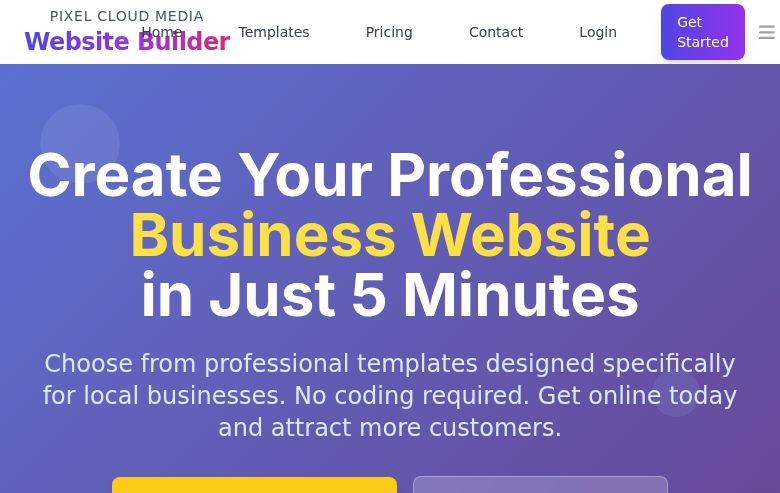
Choose a Template
Browse over 290 professional templates across 17 categories. Filter by business type, preview each template live, and select the one that fits your brand.
Add Your Information
Fill in a short form with your business name, phone, email, address, and subdomain. We automatically customize the template with your details.
Go Live!
Your website is built automatically in about 5 minutes. You'll get a progress tracker, and once complete, your site is live with SSL, hosting, and a custom URL.
What You Get
- Free SSL certificate (HTTPS)
- Mobile-responsive design
- SEO-optimized pages
- Custom subdomain (e.g., mycompany.find-local-services.com)
- 30-day free trial, no credit card required
- Account credentials emailed to you automatically
Choosing Templates
We offer over 290 professionally designed templates organized by industry. Each template comes pre-built with pages, images, and content ready to customize.

Template Categories
Free vs. Premium Templates
Free Templates
- Single-page HTML websites
- No CMS required
- Instant setup
- Up to 3 free websites per account
- SSL certificate included
- Template editor access
Premium Templates
- Full multi-page website
- Multiple pages with blog
- Contact forms, booking, analytics
- Admin dashboard access
- Security & SEO plugins pre-installed
- Requires paid subscription
How to Find the Right Template
- 1. Browse by category — Click a category button (e.g., "Construction", "Restaurant") to filter templates relevant to your industry.
- 2. Search by keyword — Use the search bar to find templates by name or description.
- 3. Filter by type — Toggle between "Free" and "Premium" to see only the templates available for your plan.
- 4. Preview live — Click "Preview" on any template to see a full live demo of how it looks.
- 5. Select and build — Click "Use Template" or "Use This" to start creating your website with that template.
Creating Your Website
Once you've chosen a template, you'll fill in a short form with your business details. Our system automatically builds your website in about 5 minutes.
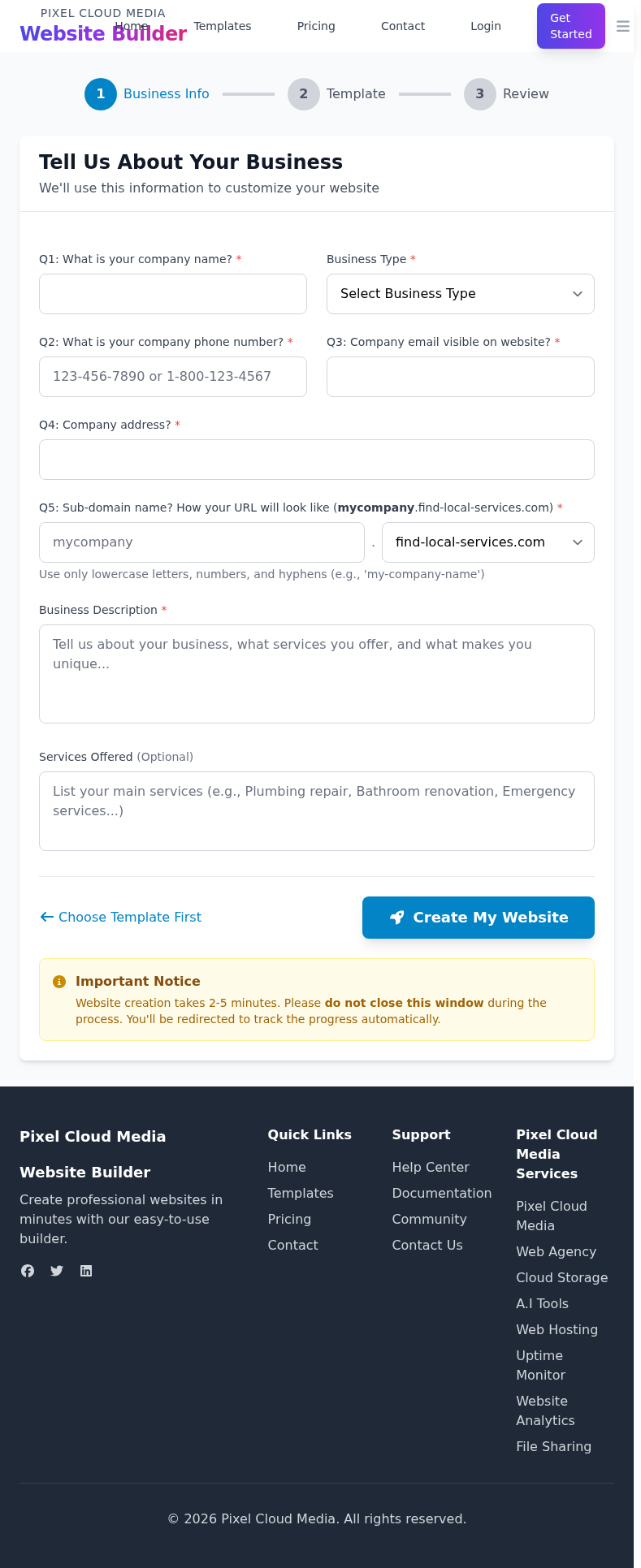
Required Information
| Field | Description | Example |
|---|---|---|
| Company Name | Your business name displayed on the website | Johnson Plumbing |
| Business Type | Category of your business | Construction |
| Phone Number | Contact number visible on your website | 123-456-7890 |
| Business email for the website and account | info@mybusiness.com | |
| Address | Physical business address | 123 Main St, New York, NY |
| Subdomain | Your website URL (3-20 characters, lowercase) | johnson-plumbing |
| Business Description | Brief description of your services | Full-service plumbing... |
Available Domains
You can choose from the following domain options for your subdomain:
What Happens After You Submit
Important
Do not close your browser during website creation. You'll see a real-time progress tracker. The entire process takes approximately 5–15 minutes depending on the template.
User Dashboard
After logging in, your dashboard gives you an overview of your account: active websites, subscription status, quick actions, and recent activity.
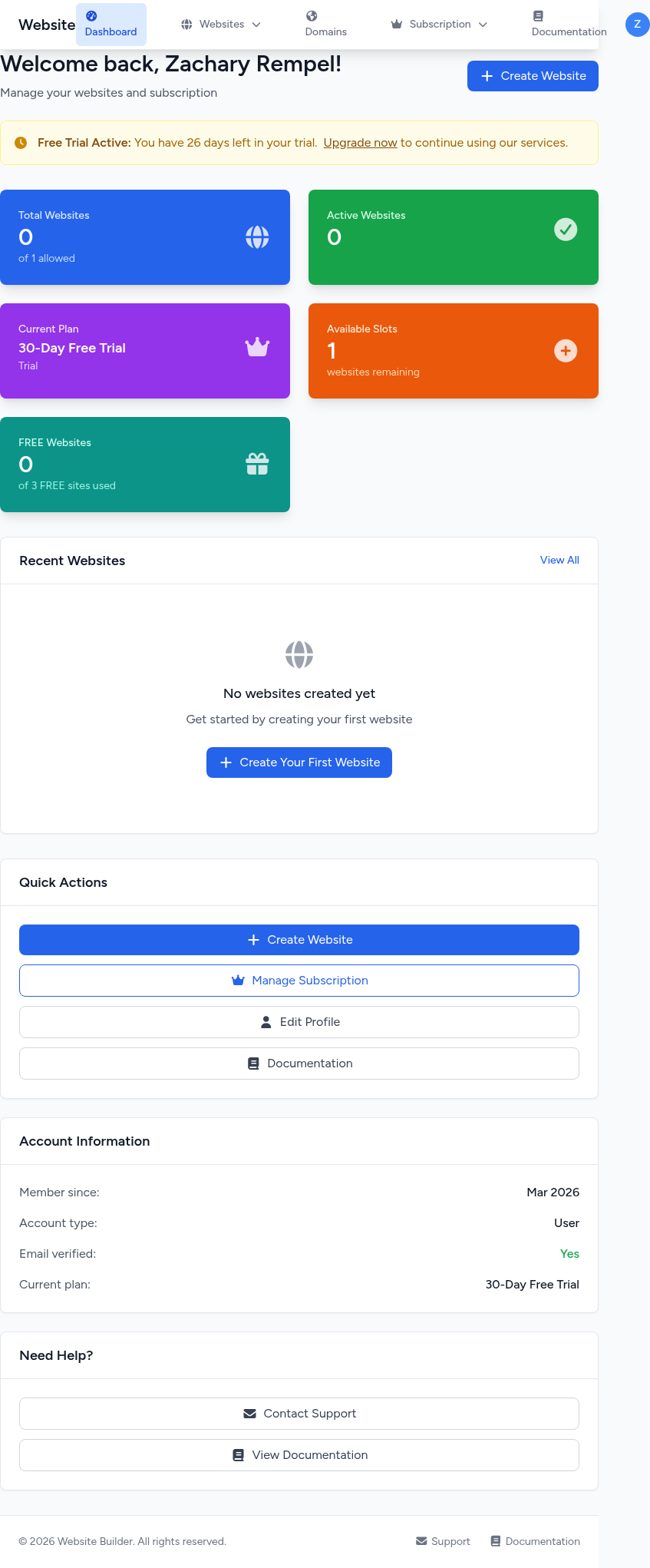
Dashboard Overview
Website Stats
- Total Websites — How many you've created vs. your plan limit
- Active Websites — Currently live and running
- Available Slots — How many more you can create
- FREE Websites — Free template sites used (max 3)
Quick Actions
- Create Website — Start building a new website
- Manage Subscription — View or change your plan
- Edit Profile — Update your account details
- Documentation — Access this guide
Navigation
Use the top navigation bar to access all sections of your account:
Subscription Plans
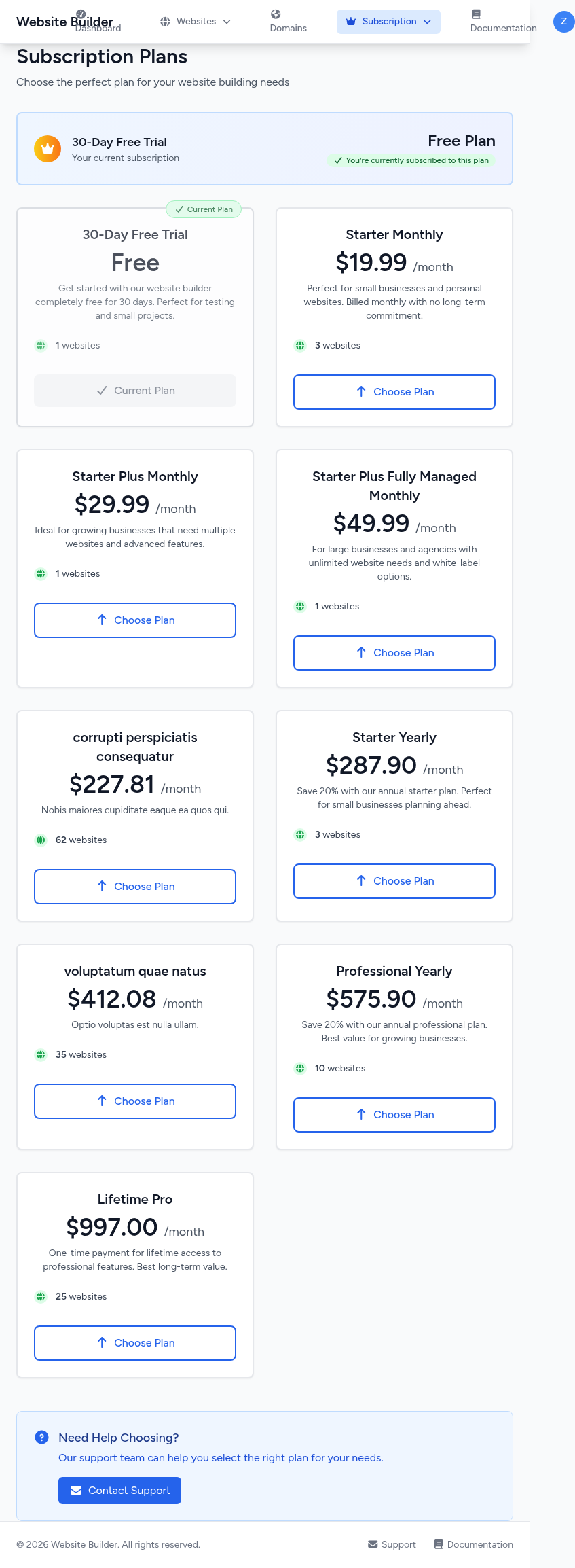
Choose from multiple plans designed for different business needs. All new accounts start with a 30-day free trial.

Plan Comparison
| Plan | Billing | Max Websites | Key Features |
|---|---|---|---|
| 30-Day Free Trial | Trial | 1 | Basic templates, SSL, mobile responsive, basic support |
| Starter Monthly | Monthly | 3 | All premium templates, SSL, contact form, analytics, SEO, CRM, security plugins, booking, uptime monitor |
| Starter Plus Monthly Popular | Monthly | 3 | All of Starter + ChatBot, AI Text Assistant, Accounting, HR, Sales/ERP plugins |
| Fully Managed Monthly | Monthly | 1 | All of Starter Plus + customization, management, 24/7 premium support |
| Starter Yearly | Yearly | 1 | Same as Starter Monthly, save 20% |
| Starter Plus Yearly Popular | Yearly | 3 | Same as Starter Plus Monthly, save 20% |
| Fully Managed Yearly | Yearly | 1 | Same as Fully Managed Monthly, save 20% |
Tip: Save 20% with Yearly Plans
Switch between Monthly and Yearly billing on the pricing page to see annual savings. Yearly plans include a 30-day free trial. Visit the Pricing page for current prices.
Upgrading Your Plan
You can upgrade, downgrade, or change your subscription plan at any time from your account dashboard.
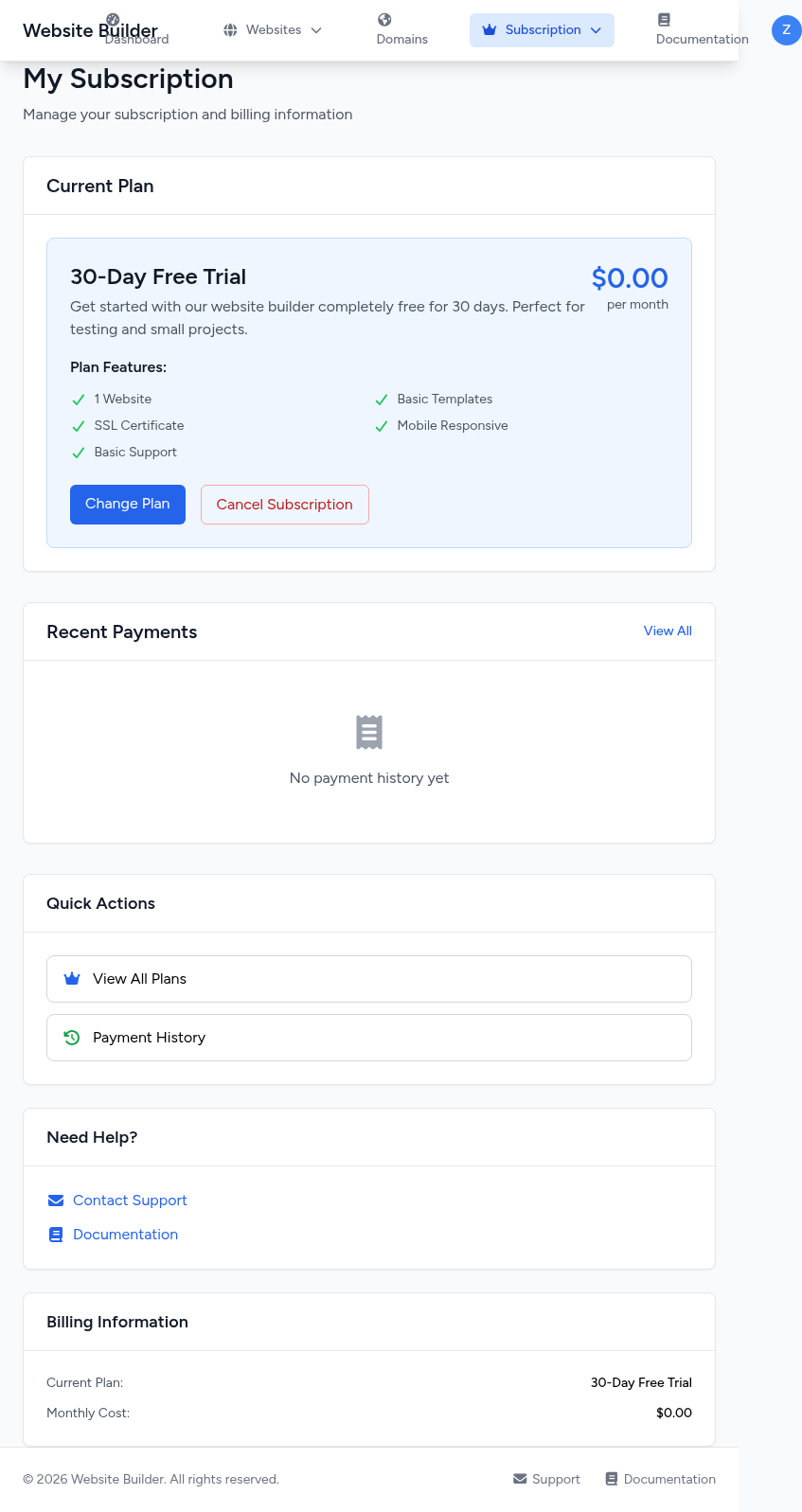
How to Upgrade
-
1
Go to Subscription — Navigate to Subscription in the top menu, or click "Manage Subscription" from your dashboard.
-
2
Click "Change Plan" — On your subscription page, click the blue "Change Plan" button to see all available plans.
-
3
Select a New Plan — Browse the available plans and click "Choose Plan" on the one you want.
-
4
Checkout — Select your payment method (Credit Card, PayPal, or Bank Transfer), optionally add a coupon code, and complete the purchase.
Upgrading
- Takes effect immediately
- Unused time on current plan is prorated as credit
- New features available right away
Downgrading
- Takes effect at end of current billing cycle
- You keep current features until then
- Website limits adjust on next cycle
Payment Methods
Cancelling Your Subscription
To cancel, go to Subscription > My Subscription and click the red "Cancel Subscription" button. Your service continues until the end of the current billing cycle, and your websites remain accessible during the grace period. Your data is preserved for 30 days after cancellation.
Add-ons
Add-ons are optional features you can add to your website to extend its capabilities. Many add-ons are included free with any paid plan, while premium add-ons are available for an additional monthly fee.

Free Add-ons (Included with Paid Plans)
Cloud Drive Backup Storage
25GB encrypted cloud storage with automatic daily backups, file versioning, and cross-platform sync.
Productivity Suite
Task management, calendar, notes, time tracking, project management, and team collaboration.
Website Uptime Monitor
24/7 monitoring with 1-minute check intervals, email & SMS alerts, performance monitoring, and public status page.
Website Advanced Analytics
Visitor tracking, conversion funnels, heat maps, goal tracking, custom dashboards, and real-time analytics.
vCards & Bio Links
Digital business cards, bio link pages, QR codes, contact forms, social media links, and analytics.
SSL Certificate
Free SSL with HTTPS encryption, automatic renewal, and browser trust indicators.
Basic SEO Tools
Essential search engine optimization tools to help your site rank higher.
Premium Add-ons
| Add-on | Description |
|---|---|
| Advanced Uptime Monitor | 30-second checks, multi-channel alerts, global network, API monitoring |
| Premium Cloud Storage | 200GB encrypted storage with priority sync |
| AI Content Assistant | AI-powered content writing and optimization |
| AI Website Optimizer | AI-driven website performance optimization |
| Basic CRM | Customer relationship management essentials |
| Professional CRM | Full-featured CRM with advanced pipelines |
| Professional Analytics Suite | Enterprise-grade analytics and reporting |
| Secure File Sharing | Encrypted file sharing with clients and teams |
| Document Manager | Document management and organization |
How to Add an Add-on
Visit the Add-ons page, sign in to your account, and click "Purchase" on any premium add-on. Free add-ons are activated automatically when you have an active paid subscription or trial.
Bundles
Bundles combine a subscription plan with popular add-ons at a significant discount. They're the best way to get multiple features at a lower price.
Available Bundles
Starter AI Writer Bundle
15% offStarter Monthly + AI Content Assistant + Basic SEO Tools
Ideal for content creators who need AI-powered writing and SEO optimization.
Starter Analytics Pro Bundle
20% offStarter Monthly + Professional Analytics Suite + Advanced Uptime Monitor
Perfect for data-driven businesses that need comprehensive monitoring and insights.
Small Business Growth Bundle
25% off • PopularStarter Plus + Professional CRM + Professional Analytics + Pro vCard Suite
Best for growing businesses that need CRM, analytics, and digital presence tools.
Agency Productivity Bundle
30% offStarter Plus + Enterprise Document Manager + Professional File Sharing + Advanced Productivity Tools
Designed for agencies managing multiple clients and large document workflows.
Complete AI Business Suite
PopularStarter Plus + AI Content Assistant + Professional Analytics + Cloud Storage
AI-powered bundle for businesses that want smart content, analytics, and storage.
Enterprise Complete Bundle
35% offFully Managed + Professional CRM + AI Content + Business Cloud Storage + Enterprise Document Manager + Professional Analytics
The ultimate enterprise package with everything included and fully managed service.
Starter Annual Value Bundle
40% off • Best Annual ValueStarter Yearly + AI Content + Professional Analytics + Advanced Uptime Monitor
Maximum savings with annual billing plus essential premium add-ons.
Bundle Savings
Bundles save you 15%–50% compared to purchasing the plan and add-ons separately. Discounts are calculated on the combined price and applied automatically at checkout.
Custom Domains
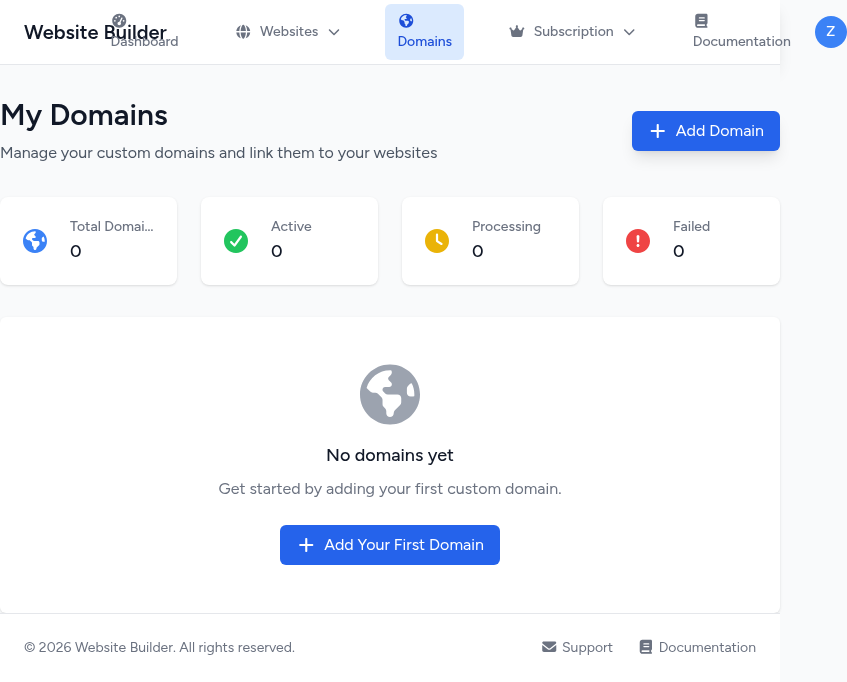
You can connect your own domain name (e.g., mybusiness.com) to any of your websites, instead of using the default subdomain.
How to Add a Custom Domain
-
1
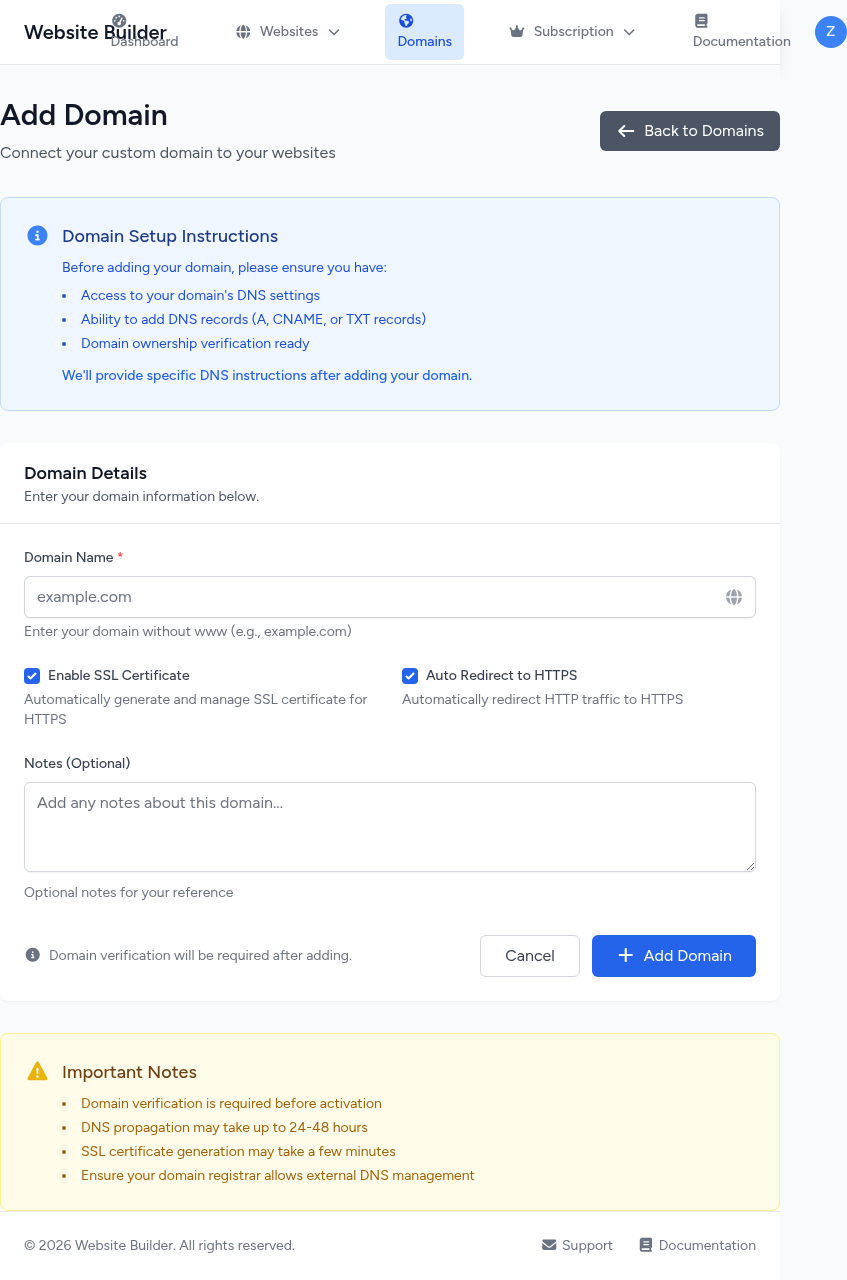
Navigate to Domains — Go to Domains in the top navigation bar and click "Add Domain".
-
2
Enter Your Domain — Type your domain name without www (e.g.,
mybusiness.com). SSL and HTTPS redirect are enabled by default. -
3
Configure DNS — After adding, you'll see DNS instructions. Log into your domain registrar (GoDaddy, Namecheap, etc.) and create an A record pointing to the server IP provided.
-
4
Verify Domain — Click "Verify Now" on the domain detail page. We check if your DNS A record is pointing correctly. You can attempt verification up to 5 times per hour.
-
5
Link to Website — Once verified (status turns "Active"), click "Link to Website" and select which of your websites should use this domain.
DNS Propagation
After updating your DNS records, propagation can take up to 24–48 hours. If verification fails, wait a few hours and try again. SSL certificates are generated automatically once the domain is verified.
Domain Statuses
Account Emails
We send several important emails throughout your experience. Here's what to expect and what information they contain. All emails come from noreply@5-minute-website-builder.com.
Account Credentials Email
Sent when your account is first created
This is the first email you receive after creating a website. It contains:
- Your account email — The email you used to sign up
- Password setup link — A secure link (valid for 24 hours) to set your dashboard password
- 30-day trial info — Confirmation of your free trial period
- Dashboard link — Direct link to log in and manage your websites
Important: Set your password within 24 hours using the link in this email. After that, use "Forgot Password" on the login page to get a new link.
Email Verification
Sent immediately after account creation
Confirms your email address is valid. Contains a verification link (valid for 24 hours). Your website creation proceeds immediately — verification is not required to start building, but is needed for full account access.
Website Created Email
Sent when your website build completes
Your most important email. Contains everything you need to access and manage your new website:
Premium Templates
- Your live website URL
- Admin dashboard URL
- Admin username & password
- Editor username & password
Free Templates (Static HTML)
- Your live website URL
- Template editor URL
- Editor credentials
Keep this email safe! It contains your admin credentials. We recommend changing your password after first login.
Welcome Email
General welcome message
A friendly welcome to the platform with links to your dashboard, login page, trial information, and support contacts.
Payment & Subscription Emails
Sent for payment events
- Payment Retry Warning — Sent if a payment fails. Includes the amount, retry attempts, and grace period end date. Update your payment method to avoid service interruption.
- Payment Retry Success — Confirms a previously failed payment was successfully processed.
- Subscription Expired — Sent if your subscription is suspended after failed payments. Your websites are suspended but data is preserved for 30 days.
Can't find an email?
Check your spam/junk folder. Add noreply@5-minute-website-builder.com to your contacts. If you still can't find it, contact support and we'll resend it.
Payment History & Invoices
View all your payment transactions, download invoices, and track your billing history.
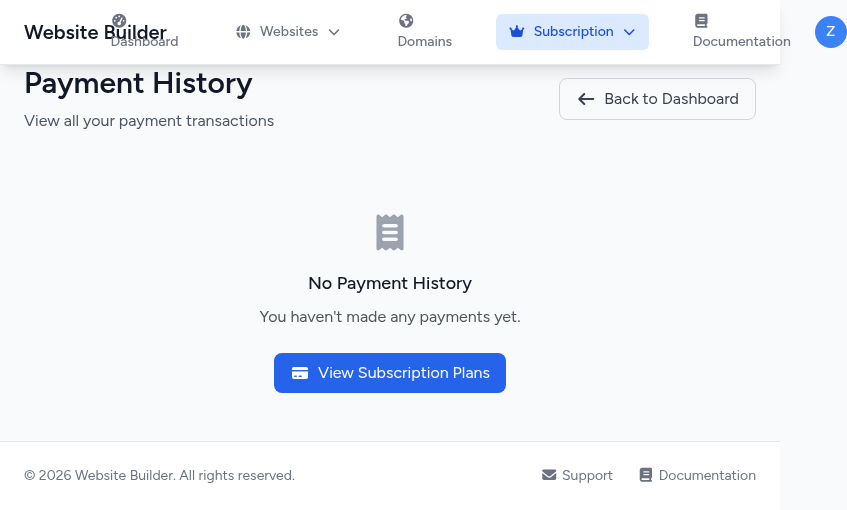
How to View Payment History
- 1. Go to Subscription in the top menu
- 2. Click "Payment History" in the Quick Actions section, or click "View All" next to Recent Payments
- 3. You'll see a table with all your transactions sorted by date (newest first)
Payment Details
Each payment record shows:
- Date & Time of transaction
- Description (plan name or add-on)
- Amount in USD
- Payment Method used
- Status (Approved, Pending, Rejected)
- Invoice (View / Download PDF)
Payment Statuses
Downloading Invoices
For approved payments, click "View" to see the invoice on screen, or "Download" to get a PDF. Invoices include your business details, payment breakdown, and transaction reference number — useful for expense tracking and tax purposes.
Managing Your Websites
Once your website is live, you can manage it through your dashboard and directly through the admin panel (for premium templates).
Website Statuses
What You Can Do
Admin Dashboard
Premium template sites include full admin access. Edit pages, add blog posts, install plugins, change themes, and more. Access it at yoursite.com/wp-admin.
Template Editor
Free template sites have an online template editor where you can customize text, images, colors, and layout without any coding.
Link a Custom Domain
Connect your own domain name to any completed website from the Domains section (see Custom Domains above).
Pre-installed Security
Premium sites come with security plugins (AIOS, NinjaFirewall, WP Defender) pre-configured with hardened settings, file permissions, and firewall rules.
Frequently Asked Questions
How long does it take to create a website?
Premium templates take about 5–15 minutes. Free templates are nearly instant. You'll see a real-time progress tracker during the build.
Do I need a credit card for the free trial?
No. The 30-day free trial requires no credit card. You can create one website and explore all features before deciding on a paid plan.
How many free websites can I create?
Every account can create up to 3 free template websites (single-page HTML sites). Premium template websites require a paid subscription.
Can I cancel my subscription anytime?
Yes. Cancel from your Subscription page. Your service continues until the end of your current billing cycle. Your website data is preserved for 30 days after the subscription ends.
What payment methods do you accept?
Credit/debit cards (via Stripe), PayPal, and bank transfers. Coupon codes can be applied at checkout for discounts.
Can I use my own domain name?
Yes. Go to Domains in your dashboard, add your domain, point your DNS A record to our server, verify, and link it to your website. SSL is configured automatically.
What happens when my trial expires?
After 30 days, you'll need to subscribe to a paid plan to keep your website active. Your site remains accessible during the trial but will be suspended if no plan is selected after expiry.
Do you offer refunds?
We offer a 30-day satisfaction guarantee. If you're not happy within the first 30 days, contact support and we'll work with you to make it right or provide a full refund.
I didn't receive my credentials email. What should I do?
Check your spam/junk folder first. If it's not there, use the "Forgot Password" link on the login page to set a new password, or contact support for assistance.
Are add-ons required?
No. Add-ons are completely optional. Your subscription plan includes everything needed for a professional website. Add-ons are available if you want extra features like advanced analytics, CRM, or additional cloud storage.
Still Need Help?
Our support team is available to help you with any questions or issues. Don't hesitate to reach out.